Alhamdulillah, my home lab now has an Oracle E-Business Suite 12.2.12 Vision instance running on Oracle Database 19c, alongside the older 12.2.9 Vision VM I have used for a long time.
I started out wanting to upgrade the 12.2.9 VM to 12.2.15. Without My Oracle Support access that path is closed: the 12.2.15 RUP, the AD/TXK delta patches and the 19c interoperability patches all come from MOS. The 12.2.12 VM Virtual Appliance, on the other hand, is downloadable from Oracle Software Delivery Cloud with a normal Oracle account, and it already ships with Database 19c. So that became the plan.
This post covers the whole run on a Windows desktop: the download (which did not go smoothly), rebuilding the OVA without Linux tools, the VirtualBox import, first boot, and the fixes needed before everything, including the WebLogic console, was usable.
Lab environment
| Item | Value |
|---|---|
| Host | Windows desktop, 64 GB RAM, VirtualBox 7.0.8 |
| Staging space | About 920 GB free on a separate data drive |
| Media | Oracle VM Virtual Appliance for Oracle E-Business Suite 12.2.12 (Single Node Vision Install), 20 files, 68 GB |
| Guest | Oracle Linux 7.9, EBS 12.2.12, Oracle Database 19c (CDB EBSCDB, PDB EBSDB) |
| VM sizing | 4 vCPU, 16 GB RAM, NIC 1 NAT, NIC 2 Host-only |
Plan for roughly 200 GB of working space during assembly: 68 GB of zips, about 68 GB of unzipped pieces and a 71 GB OVA. Oracle’s own assemble script checks for 216 GB.
Step 1: Get the media from Oracle Software Delivery Cloud
On first sign-in (or after a long gap) edelivery may hold the account for export validation. In my case the hold cleared on its own a few hours later.
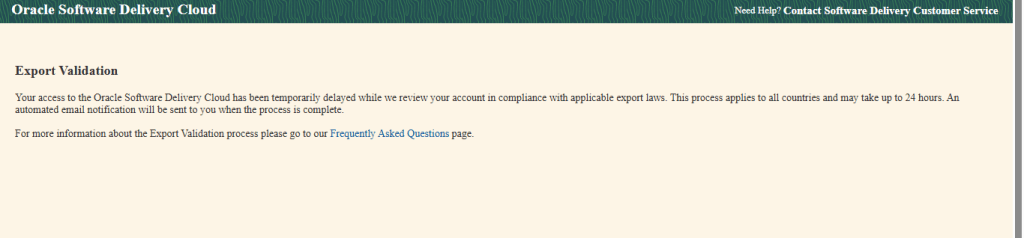
Export validation hold on first sign-in
Search for Oracle VM Virtual Appliance for Oracle E-Business Suite, pick the 12.2.12 release, platform Linux x86-64.
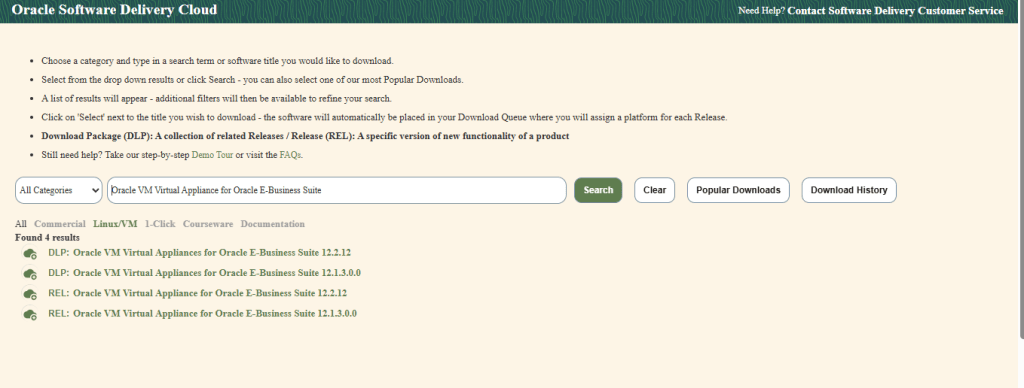
Search results for the VM Virtual Appliance
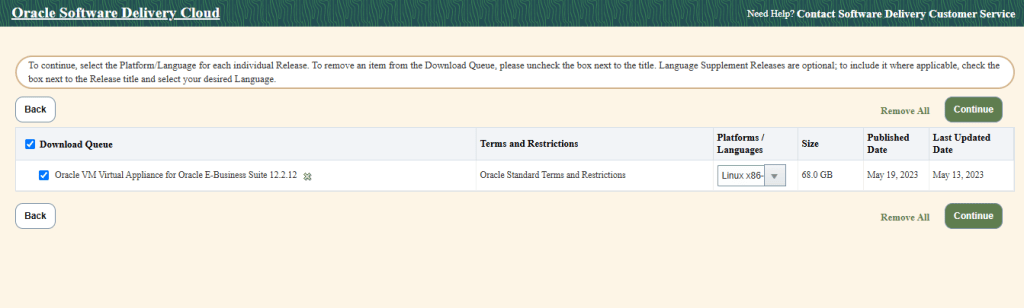
Download queue: 68 GB, Linux x86-64
The release is 20 files: a README part (V1034613-01) and the Single Node Vision Install split into 19 zips. Before downloading, click View Digest Details and save the SHA-256 values. They are needed later.
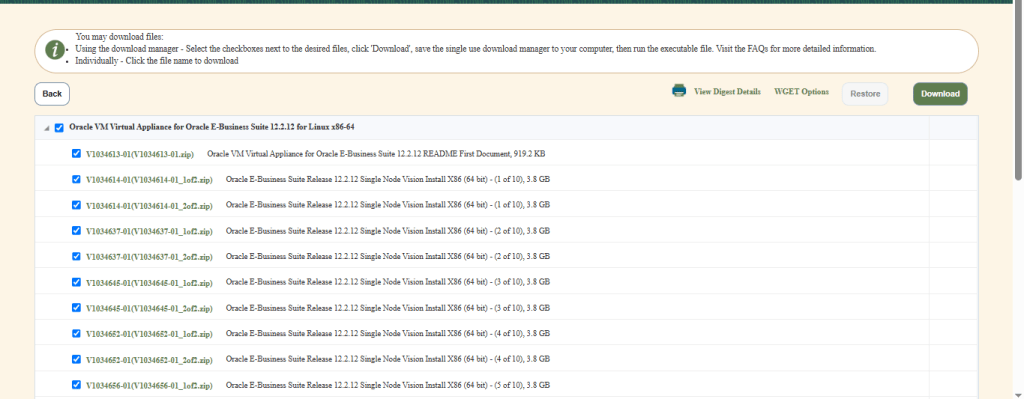
The 20 files that make up the appliance
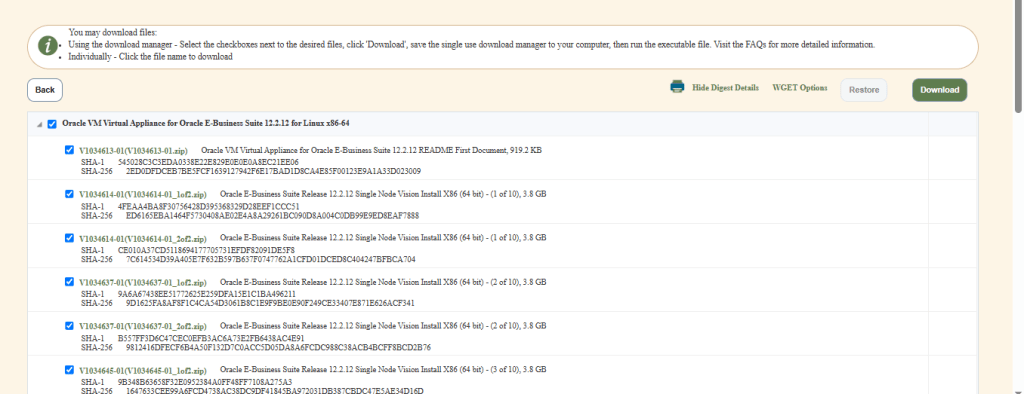
SHA-256 digests to save before downloading
Step 2: When the Download Manager stalls
The Oracle Download Manager started well at around 40 MB/s, then stopped making progress. Two things made this confusing:
- The Download Manager appeared to reserve each file’s full size on disk when it started, so a 3.8 GB file in Explorer does not mean that file is finished. The progress bar is the only reliable indicator.
- When my browser session on edelivery timed out, the running downloads stalled with it.
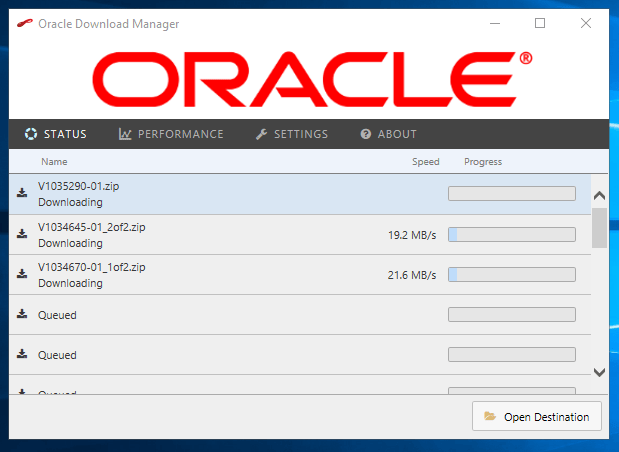
Download Manager: one stream with no speed, others barely moving
I switched to the WGET Options route. The current edelivery wget script uses an access token (Generate Token, then Copy) and the URLs stay valid for 8 hours.
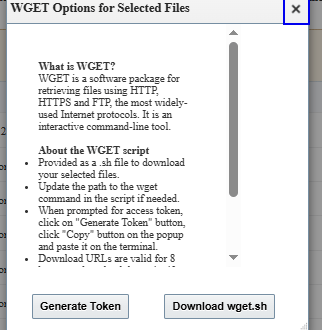
WGET Options: token based, URLs valid for 8 hours
The script is written for Linux and I had no WSL on this machine, so I converted it to PowerShell using the curl.exe that ships with Windows 10/11. Every request came back with an HTTP error. A quick test against the small README file showed why:
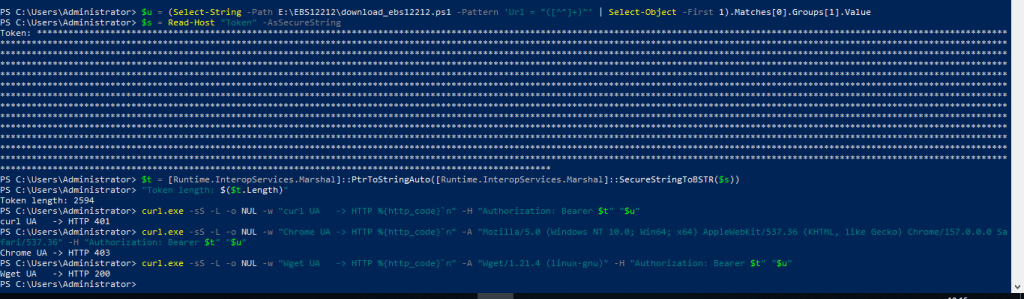
Same token and URL: curl user agent 401, browser user agent 403, Wget user agent 200
In my test the token was accepted only when the request identified itself as wget. Adding a Wget user agent to the curl call fixed it:
curl.exe -L -sS -f -C - --retry 30 --retry-delay 15 --retry-connrefused ` -A "Wget/1.21.4 (linux-gnu)" ` -H "Authorization: Bearer <TOKEN>" ` -o "<STAGE_DIR>\<FILE_NAME>.zip" "<URL_FROM_WGET_SCRIPT>"
I ran the files four at a time first, then two at a time, and made re-runs skip anything already on disk. A handful of files still came back with HTTP 401 on every attempt, the same files each time. I did not find the reason. Clicking those file names directly on the edelivery page downloaded them in the browser without any problem.
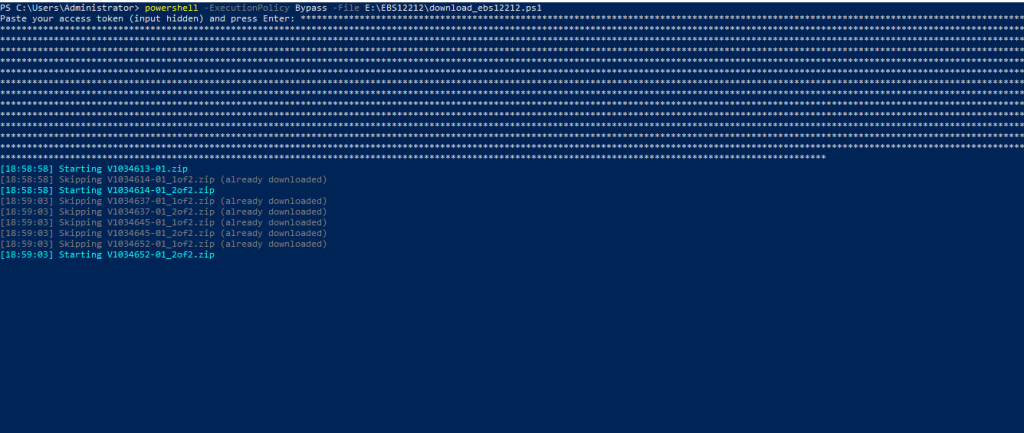
Re-run skipping completed files and retrying only the missing ones
Keep the generated wget script and tokens private. They carry your account details.
Step 3: Verify all 20 files
Before spending an hour on assembly, check every zip against the digests saved in Step 1. A short PowerShell loop with Get-FileHash -Algorithm SHA256 does the job:
$expected = @{ "V1034613-01.zip" = "<SHA256>"; "V1034614-01_1of2.zip" = "<SHA256>"; <# ...all 20... #> }foreach ($name in $expected.Keys) { $actual = (Get-FileHash "<STAGE_DIR>\$name" -Algorithm SHA256).Hash "{0,-24} {1}" -f $name, $(if ($actual -eq $expected[$name]) {"OK"} else {"MISMATCH"})}
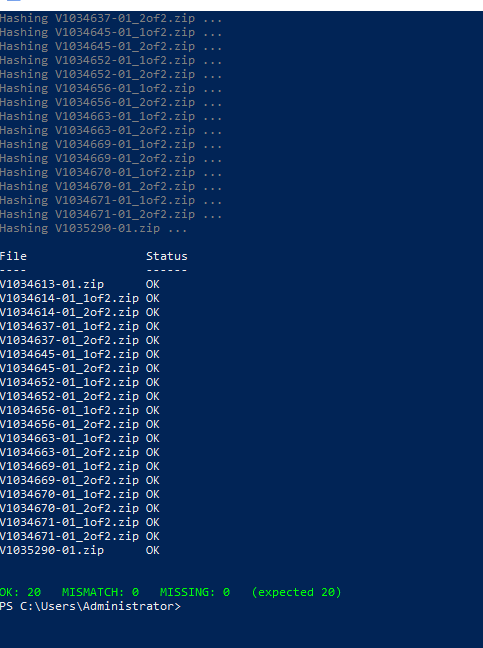
All 20 files verified
Step 4: Assemble the OVA on Windows
The README part contains the deployment guide (MOS Doc ID 2933812.1) and assemble_12212.zip. Inside are assemble.sh for Linux and assemble_OSX.sh for Mac, nothing for Windows. Reading assemble.sh, it does four things:
- Checks the MD5 of the 19 media zips.
- Unzips each one, giving
Oracle-E-Business-Suite-12.2.12_VISION_INSTALL.ova.00to.ova.18. - Concatenates the 19 pieces in order into the final
.ova. - Compares the final MD5 with
finalmd5sumwhenshipped.txt.
All of that is available in PowerShell. tar.exe (built into Windows 10/11) unzips noticeably faster than Expand-Archive, and a .NET file stream handles the concatenation:
foreach ($z in $zips) { tar.exe -xf "<STAGE_DIR>\$z" -C "<WORK_DIR>" }$out = [IO.File]::Open("<OVA_DIR>\Oracle-E-Business-Suite-12.2.12_VISION_INSTALL.ova", "CreateNew", "Write")foreach ($i in 0..18) { $in = [IO.File]::OpenRead(("<WORK_DIR>\Oracle-E-Business-Suite-12.2.12_VISION_INSTALL.ova.{0:D2}" -f $i)) $in.CopyTo($out, 16MB); $in.Dispose()}$out.Dispose()(Get-FileHash "<OVA_DIR>\Oracle-E-Business-Suite-12.2.12_VISION_INSTALL.ova" -Algorithm MD5).Hash
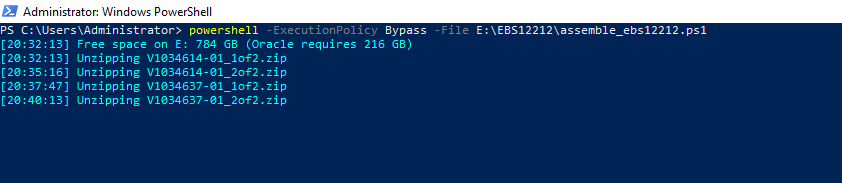
Unzipping: about 2.5 to 3 minutes per zip
On my desktop the whole run took 102 minutes: about an hour to unzip, 30 minutes to concatenate and 15 minutes for the MD5. The result was a 71.15 GB OVA, and the MD5 matched the value Oracle ships (abd04f6e3ed1d4afbcb78509f7d57a1c).
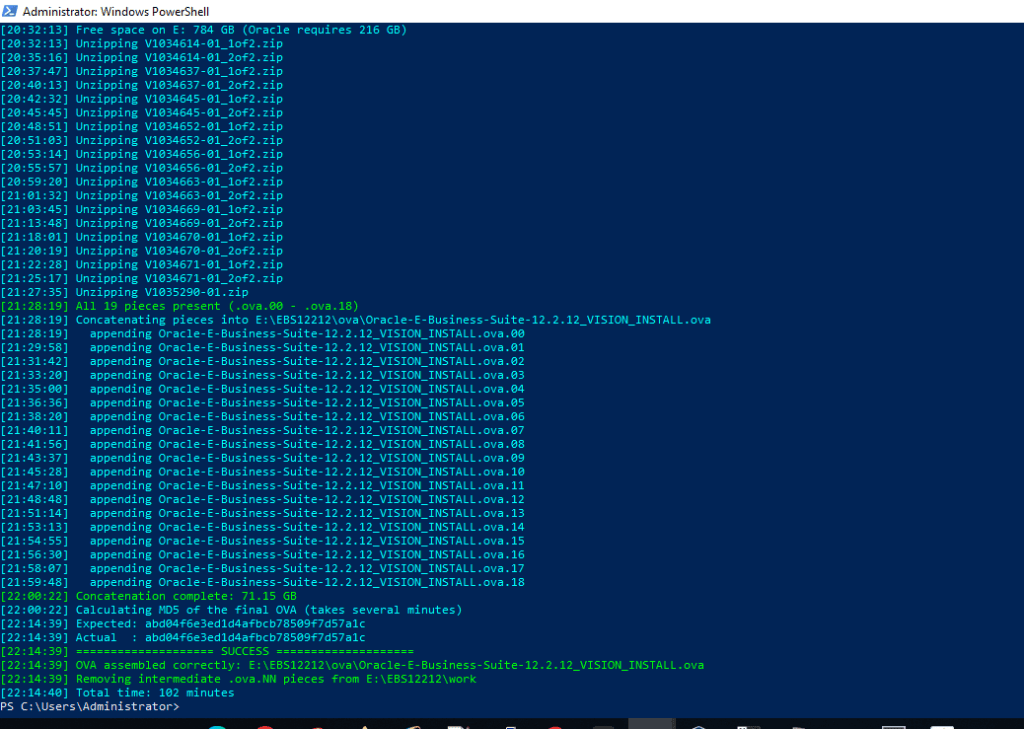
Assembly complete, MD5 matches
Step 5: Import into VirtualBox
Use File, Import Appliance, and change a few defaults before clicking Finish:
- Machine Base Folder defaults to the C: drive. Point it at a drive with space for the expanded disks.
- MAC Address Policy: Generate new MAC addresses for all network adapters.
- CPU comes in as 1. I set 4. RAM came in at 16384 MB, which I kept.
- Leave Import hard drives as VDI ticked.
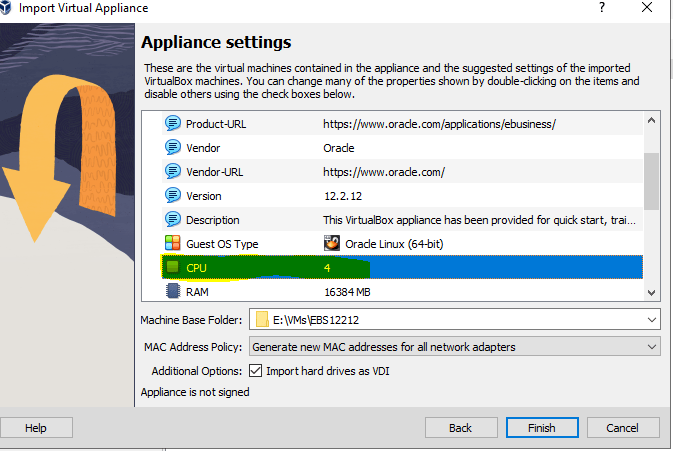
Import settings: name, base folder, MAC policy, 4 CPU, 16 GB
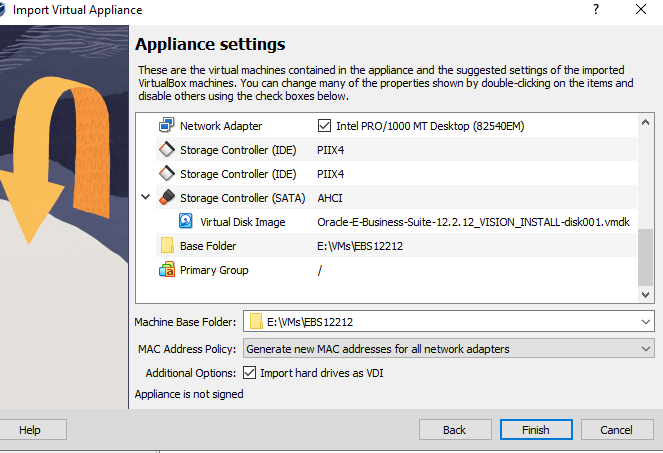
One disk and one NIC in the appliance
The import took about 90 minutes. Afterwards, in Settings:
- Network: Adapter 1 stays NAT. Enable Adapter 2 as Host-only so the Windows host can reach the VM.
- Display: VirtualBox flags the graphics controller. Switching to VMSVGA clears the warning.
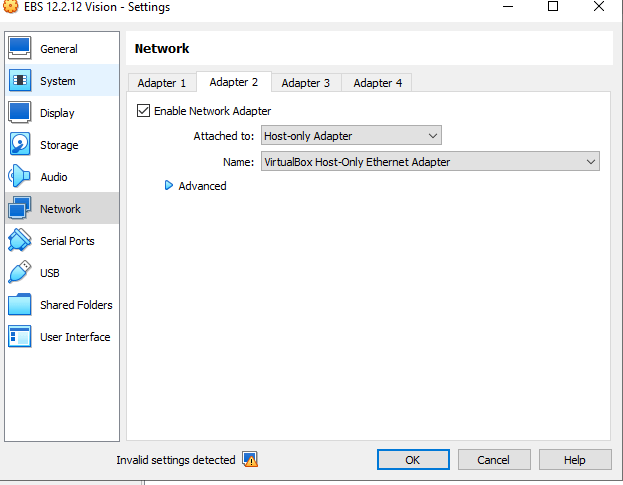
Adapter 2 as Host-only
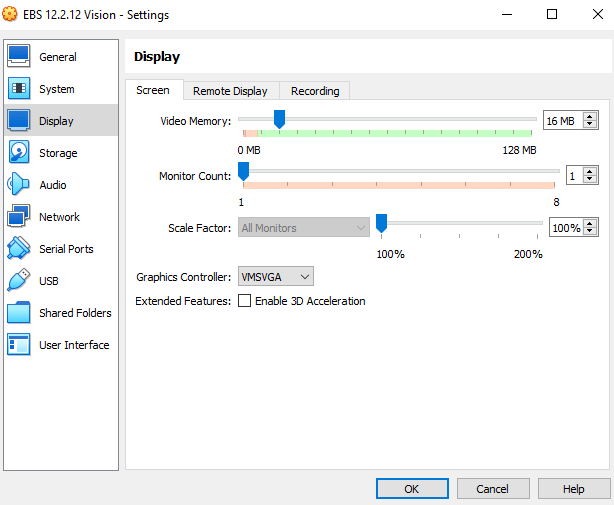
Graphics controller set to VMSVGA
Take a snapshot here, before the first boot.
Step 6: First boot and the two-NIC quirk
On first boot the appliance runs its own configuration. It appears to expect a single network interface. With two (enp0s3 for NAT and enp0s8 for Host-only) it printed ambiguous redirect while writing the ifcfg file, reported that DHCP had failed, and left only the NAT interface working. It then offers VISION to configure the demo instance or NONE to just log in.
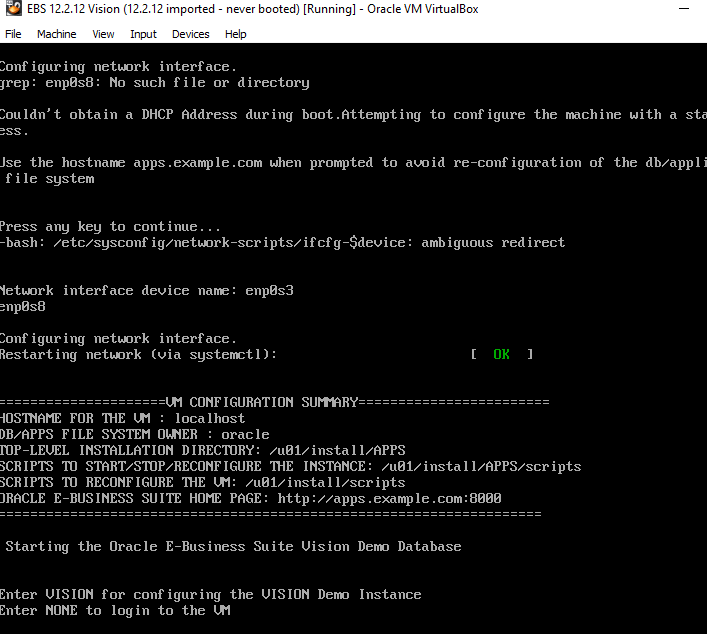
First boot: the script trips over two NICs
Entering VISION configured the instance and registered the database and application tier to start at boot.
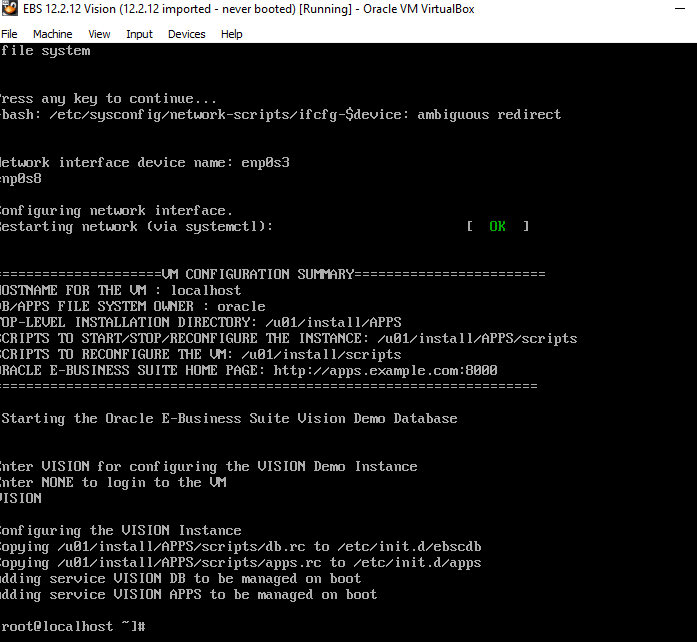
VISION configured, services added at boot
The VirtualBox console has no copy and paste without Guest Additions, so I typed just enough to bring up the Host-only interface temporarily and did the rest over SSH from MobaXterm:
ip addr add <HOST_ONLY_IP>/24 dev enp0s8ip link set enp0s8 up
Then the permanent configuration as root. Note that the first-boot script also never wrote an ifcfg file for enp0s3, so without the second file the NAT interface would not come back after a reboot:
cat > /etc/sysconfig/network-scripts/ifcfg-enp0s8 <<EOFTYPE=EthernetDEVICE=enp0s8NAME=enp0s8ONBOOT=yesBOOTPROTO=noneIPADDR=<HOST_ONLY_IP>PREFIX=24DEFROUTE=noEOFcat > /etc/sysconfig/network-scripts/ifcfg-enp0s3 <<EOFTYPE=EthernetDEVICE=enp0s3NAME=enp0s3ONBOOT=yesBOOTPROTO=dhcpDEFROUTE=yesEOFhostnamectl set-hostname apps.example.comcp /etc/hosts /etc/hosts.origsed -i '/apps.example.com/d' /etc/hostssed -i '/^10\.0\.2\.15/d' /etc/hostsecho "<HOST_ONLY_IP> apps.example.com apps" >> /etc/hostsreboot
The script had also left a line mapping the NAT address to localhost in /etc/hosts, which the second sed removes. After the reboot both interfaces were up and ora_pmon_EBSCDB was running. The application tier took a few more minutes before port 8000 was listening.
Step 7: Enable SYSADMIN and the demo users
As the oracle user:
. /u01/install/APPS/EBSapps.env runmkdir -p ~/logs && cd ~/logssh /u01/install/APPS/scripts/enableSYSADMIN.shsh /u01/install/APPS/scripts/enableDEMOusers.sh
enableDEMOusers.sh runs FNDCPASS once per user and writes one log for each. A quick count confirmed all 42 password changes (SYSADMIN plus 41 demo users):
grep -c "changed successfully" ~/logs/L*.log | grep -c ":1"
Step 8: Windows hosts file
The browser timed out at first. My Windows hosts file still pointed apps.example.com at the old 12.2.9 VM. Both appliances use the same hostname, so only one can be active at a time. I commented out the old entry and added the new one:
<HOST_ONLY_IP> apps.example.com apps
Then ipconfig /flushdns, and the login page loaded.
Step 9: Verification
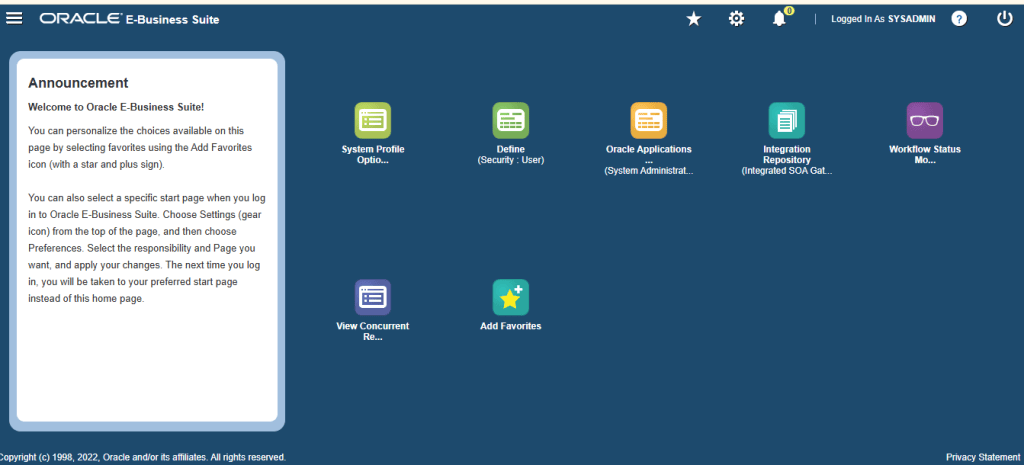
Logged in as SYSADMIN
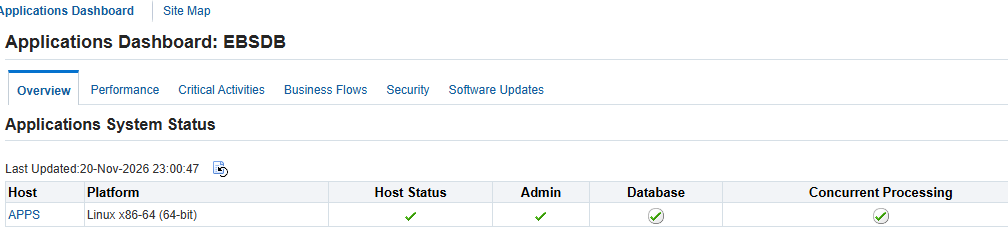
Applications Dashboard: host, admin, database and concurrent processing all up
The Workflow page needs a word of explanation for a fresh Vision instance:
- Agent Listeners and Service Components are up.
- Notification Mailer shows Unavailable because no SMTP server is configured.
- Background Engines, Purge and Control Queue Cleanup show Down only because none of those programs are scheduled yet.
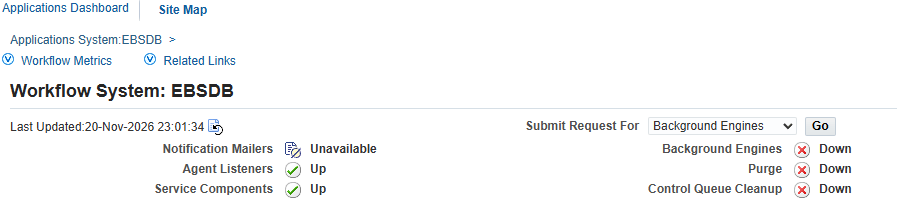
Workflow System: listeners up, background processes not yet scheduled
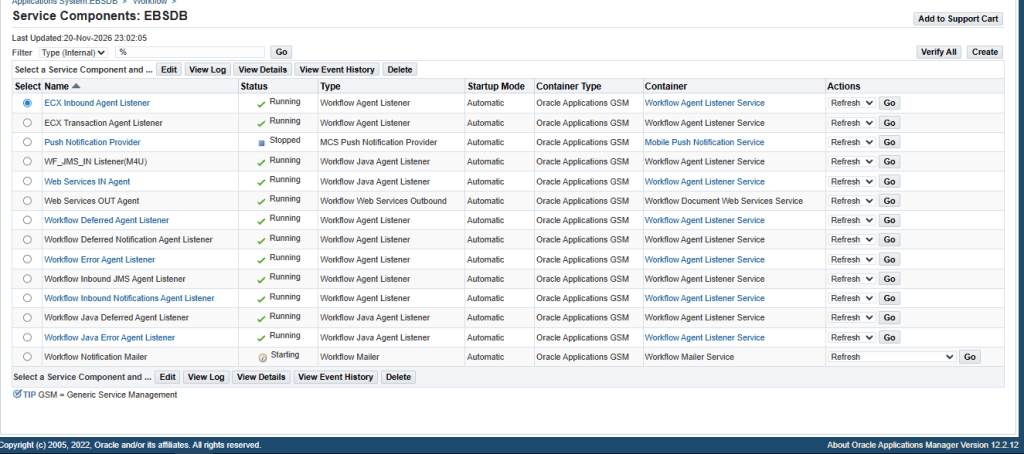
All workflow agent listeners running
Forms launched through Java Web Start, and a test Active Users request completed Normal.
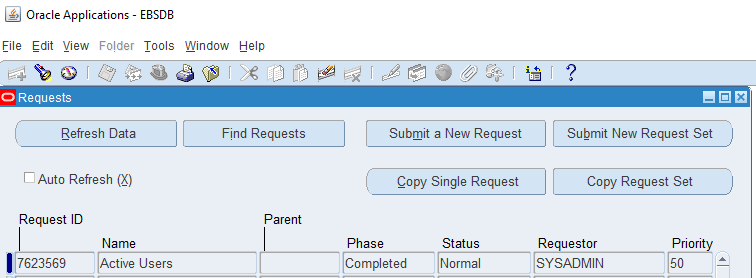
Forms and the concurrent manager working
The request log contains REP-0004: Warning: Unable to open user preference file. It is a warning about an optional Reports preference file, and the request still completed successfully with its output.
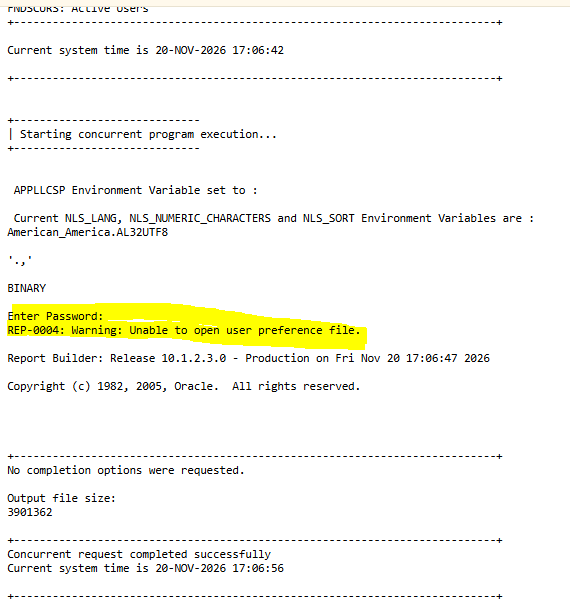
REP-0004 warning in an otherwise successful request log
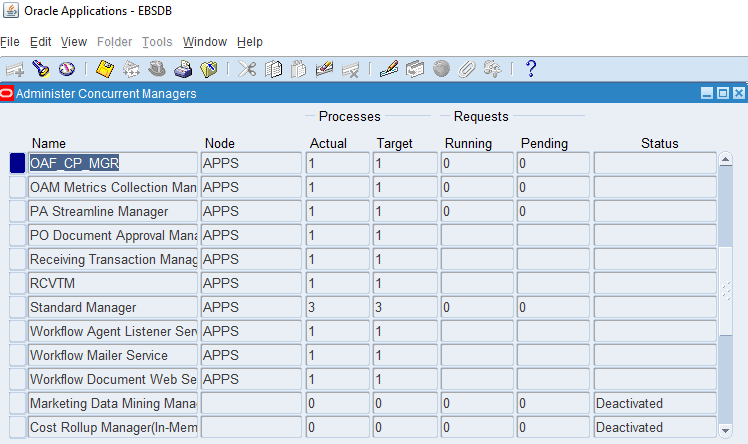
Concurrent managers: actual matches target, Standard Manager 3/3
Scheduling the Workflow background processes
To clear the three Down items, I submitted the standard programs as SYSADMIN (System Administrator, Requests, Run) with periodic schedules:
| Program | Parameters | Schedule |
|---|---|---|
| Workflow Background Process | Process Deferred, Timeout and Stuck = Yes | Every 15 minutes |
| Workflow Control Queue Cleanup | None | Every 12 hours |
| Purge Obsolete Workflow Runtime Data | Age 30, Persistence Type Temporary, Core Workflow Only N | Daily |
After the first runs, all three showed Up. The Notification Mailer stays Unavailable until an SMTP server is configured.
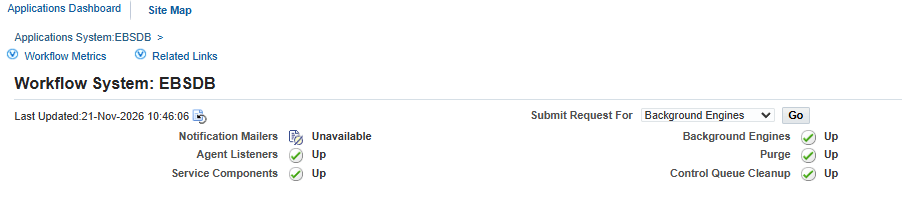
Workflow System after scheduling: Background Engines, Purge and Control Queue Cleanup up
Step 10: Opening the WebLogic console
http://apps.example.com:7001/console did not load at first. There were two separate blocks.
1. The OS firewall. The appliance’s firewalld only allowed port 8000. As root:
firewall-cmd --permanent --add-port=7001/tcpfirewall-cmd --reloadfirewall-cmd --list-ports
2. The WebLogic connection filter. With the port open, the console returned:

Connection rejected, filter blocked Socket … rule 2
EBS 12.2 limits console access to the hosts listed in the context variable s_wls_admin_console_access_nodes. On this appliance it was empty, written as a self-closing XML tag. I added the Windows host’s Host-only address, ran AutoConfig and restarted the AdminServer:
. /u01/install/APPS/EBSapps.env runcp $CONTEXT_FILE $CONTEXT_FILE.bak_$(date +%Y%m%d)sed -i 's|<s_wls_admin_console_access_nodes oa_var="s_wls_admin_console_access_nodes"/>|<s_wls_admin_console_access_nodes oa_var="s_wls_admin_console_access_nodes"><WINDOWS_HOST_ONLY_IP></s_wls_admin_console_access_nodes>|' $CONTEXT_FILEgrep s_wls_admin_console_access_nodes $CONTEXT_FILE$ADMIN_SCRIPTS_HOME/adautocfg.sh$ADMIN_SCRIPTS_HOME/adadminsrvctl.sh stop$ADMIN_SCRIPTS_HOME/adadminsrvctl.sh start
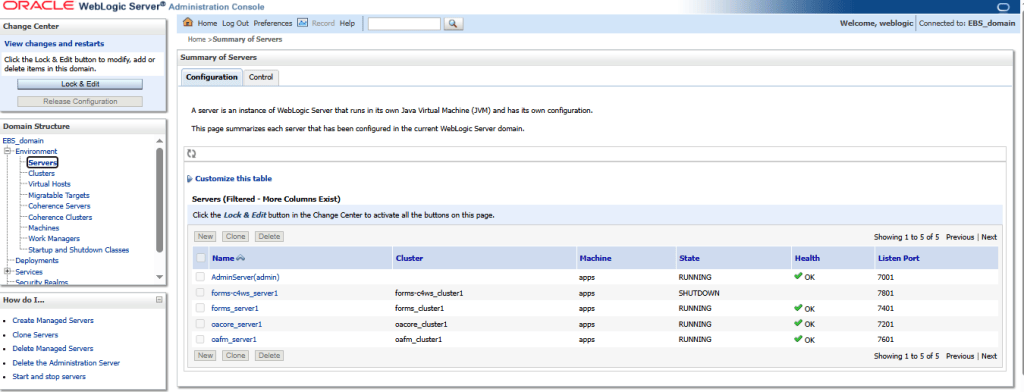
WebLogic console: AdminServer, forms, oacore and oafm running
I made the same context file change on the patch file system (. EBSapps.env patch) without running AutoConfig there, so the setting is already in place after the first adop cutover.
Step 11: A 6-hour offset in OAF pages after changing the timezone
After switching the VM to IST, date and SYSDATE were correct, but OAM pages showed times exactly 6 hours ahead (the earlier Workflow screenshot says 10:46 when the clock read 04:46). The Schedule window in Forms also proposed a start time 6 hours ahead. A look at the EBS timezone profile options explained it:
| Profile option | Level | Value found |
|---|---|---|
| ENABLE_TIMEZONE_CONVERSIONS | Site | Y |
| SERVER_TIMEZONE_ID | Site | America/Chicago (UTC-6) |
| CLIENT_TIMEZONE_ID | User (SYSADMIN) | GMT |
So EBS read 04:46 as Chicago time, converted it to GMT for SYSADMIN and displayed 10:46. The same thing had happened before I changed the OS timezone: a 17:00 US Eastern clock showed as 23:00. With the OS and database now on IST, I set the server timezone and the site and SYSADMIN client timezones to Asia/Calcutta. The other Vision demo users keep their own settings:
DECLARE l_ok BOOLEAN;BEGIN -- 166 = Asia/Calcutta in FND_TIMEZONES_B.UPGRADE_TZ_ID l_ok := fnd_profile.save('SERVER_TIMEZONE_ID','166','SITE'); l_ok := fnd_profile.save('CLIENT_TIMEZONE_ID','166','SITE'); l_ok := fnd_profile.save('CLIENT_TIMEZONE_ID','166','USER','0'); -- SYSADMIN COMMIT;END;/
Then a restart of the application tier (stopapps.sh / startapps.sh) so the OAF pages pick up the new values. One caution: in a lab with demo data this is harmless, but on a real system SERVER_TIMEZONE_ID has to match the database server’s timezone and is not something to change once live transactions exist.
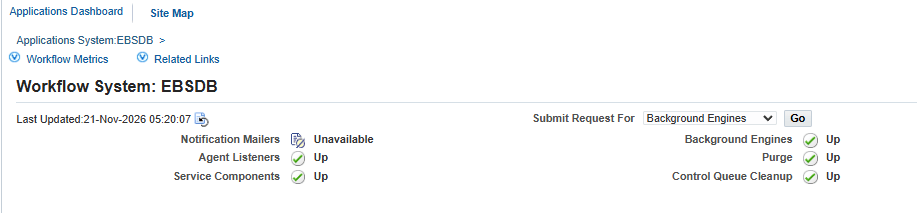
Workflow System after the profile change and an apps tier restart: Last Updated matches local time
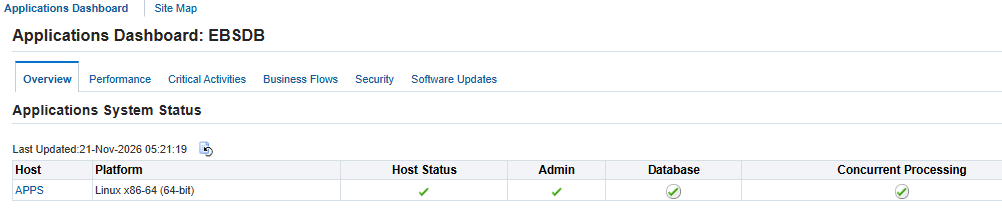
Applications Dashboard after the change: Last Updated now matches local time
A few observations
- The appliance has an
applmgrOS user, but it owns nothing under/u01. Everything, database and application tier, runs asoracle. At client sites I normally work asapplmgron the apps tier, so this is worth remembering when switching between the lab and real systems. /u01is 341 GB and about 89% used out of the box, leaving around 40 GB. That is fine for day-to-day use, but I will check it before any patching and run adop cleanup after each cycle.- The VM clock was on US Eastern time. I changed it with
timedatectl set-timezone Asia/Kolkataand a reboot, after whichSYSDATEin the database matched local time.

Two restore points: clean import and fully configured
Lessons learned
- Save the digest values before downloading, and verify every file before assembly. A bad zip found after a two-hour assembly costs far more.
- Do not trust file sizes in Explorer while the Download Manager is running. It pre-allocates.
- If the Download Manager keeps stalling, the wget token route with resume support is more dependable. On Windows, curl.exe works with a Wget user agent.
- Oracle’s assemble.sh is just unzip, cat and md5sum. Reading it first made the Windows version straightforward.
- Add the second NIC knowing that the first-boot script appears to expect only one, and plan to fix the ifcfg files afterwards.
- Opening the WebLogic console needs both the OS firewall and
s_wls_admin_console_access_nodes, on both file systems. - Changing the OS timezone is only half the job. With timezone conversions enabled, EBS also uses
SERVER_TIMEZONE_IDandCLIENT_TIMEZONE_ID, and they need to agree with the OS.
ما شاء الله, the lab now has a 19c-based EBS instance to practise adop cycles, cloning and patching on. Next on my list is a local SMTP relay to try the Notification Mailer.
References
- Oracle VM Virtual Appliance for Oracle E-Business Suite 12.2.12 Now Available (Oracle E-Business Suite Technology blog)
- Oracle VM Virtual Appliance for Oracle E-Business Suite Deployment Guide, Release 12.2.12 (MOS Doc ID 2933812.1). A copy is also included in the README part of the download.
- Oracle Software Delivery Cloud (where the appliance is downloaded)
- Oracle E-Business Suite 12.2.15 Now Available (Oracle E-Business Suite Technology blog)
- Oracle EBS 12.2.15 Marketplace Images Now Available on OCI (Oracle E-Business Suite and Oracle Cloud blog)
- Provision a New Oracle E-Business Suite Installation on a Single Node on Oracle Cloud Infrastructure (MOS Doc ID 2764690.1)
- MobaXterm (SSH client used for the VM sessions)
Disclaimer: This was done in a personal home lab for learning purposes. Hostnames are the appliance defaults, and IP addresses and account details have been replaced with placeholders.
If you have set up this appliance yourself, hit a different issue, or found a cleaner way around any of these steps, please share it in the comments below.
