Alhamdulillah. A fellow DBA recently asked whether Oracle APEX on Autonomous Database could sign users in through an existing SAML identity provider (OAM 12.2 in his case), with the login page appearing automatically. The catch: the database is on Autonomous Database with Oracle-managed ORDS, not a customer-managed ORDS. I built it end to end in my home lab on the OCI Free Tier, and this post is the write-up.
Short answer: yes, it works, but not with the APEX SAML authentication scheme directly. The route that works is APEX Social Sign-In (OpenID Connect) to an OCI IAM Identity Domain, with the Identity Domain federated to the SAML IdP.
In simple words
The company already has its own login page (OAM). Employees sign in there once. The goal was to make an APEX app on Autonomous Database use that same login. APEX can normally do this with SAML, but on Autonomous Database the web layer in front of APEX (ORDS) is managed by Oracle and does not allow the setting SAML needs. So the direct route is blocked.
The fix is to put a middleman in between. Think of it like an office building:
- APEX is the office. It only trusts the reception desk.
- OCI IAM Identity Domain is the reception desk. APEX talks to it easily using OpenID Connect.
- The company login (OAM, or Keycloak in my lab) is the security gate. Reception trusts the gate using SAML.
What the user experiences:
- The user opens the APEX app.
- APEX sends them to reception (OCI IAM).
- Reception sends them straight to the company login page.
- They log in there as usual.
- The company login confirms who they are (their email) to reception, and reception tells APEX.
- The user is inside APEX. APEX never has to deal with SAML itself.
I built this in two phases: first APEX to OCI IAM, then OCI IAM to the SAML login. Keycloak stood in for OAM in my lab; the OAM notes are further down.
What is Keycloak, and why I used it instead of OAM
Keycloak is a free, open-source identity server maintained by Red Hat. It does the same job as OAM: it stores users, shows a login page, and tells other applications who the user is, using SAML or OpenID Connect.
I used it as the SAML identity provider in the lab for these reasons:
- Setup time. OAM 12.2 needs WebLogic, a repository database, schemas and a fair amount of configuration. Keycloak ran on one small VM in about half an hour.
- It tests the same thing. The OCI IAM Identity Domain does not care which product sends the SAML assertion. It checks the standard pieces: issuer, signing certificate and NameID. If the chain works with Keycloak, the APEX and OCI side is proven.
- Light on resources. No licence, low memory, and it runs alongside my other lab VMs.
- It isolates the open question. The uncertain part was APEX on Autonomous Database → OCI IAM → SAML, not OAM itself. Proving that chain first keeps OAM-specific issues out of the picture.
Replacing Keycloak with OAM is my next lab step, planned as Part 3 of this series.
Why native APEX SAML is not the option here
Oracle documents SAML Sign-In for APEX on Autonomous AI Database as supported only when using customer-managed ORDS. The SAML browser flow ends with a cross-origin POST from the identity provider back to APEX, and ORDS has to be told to trust that origin through security.externalSessionTrustedOrigins. The Oracle-managed ORDS on Autonomous Database cannot be reconfigured by the customer, so without your own ORDS the callback is not accepted. ORDS-13002 (403 Forbidden) is the error commonly reported in this situation; I did not test native SAML on Autonomous Database myself.
Instead of fighting that, I let the OCI IAM Identity Domain do the SAML work. APEX only speaks OIDC to the Identity Domain, which APEX supports natively on Autonomous Database.
Architecture
Browser -> APEX app on Autonomous Database (Social Sign-In, OpenID Connect) -> OCI IAM Identity Domain (confidential application) -> IdP policy: always route this app to the external SAML IdP -> SAML IdP (Keycloak in the lab; OAM 12.2 in production) <- SAML assertion (NameID = email) <- OIDC tokens <- APEX session as the mapped user
In the lab I used Keycloak as a stand-in for OAM. From the Identity Domain side, both are SAML 2.0 identity providers described by the same pieces: metadata, an issuer, a signing certificate and a NameID.
Lab setup
| Component | Lab value |
|---|---|
| Database | Autonomous Database 19c, Always Free, APEX 26.1 |
| Identity | OCI IAM Identity Domain (Free tier) |
| SAML IdP | Keycloak 26.8 on an Oracle Linux 8.10 VirtualBox VM (Java 21) |
| Test app | APEX application 100, “SSO Test” |
| Cost | Always Free resources only. A USD 1 budget alert was set up to catch any accidental charge; it sends a notification but is not a spending cap. |
Everything below is masked: tenancy, domain URL, client IDs and email addresses are replaced with placeholders.
Phase 1: APEX to OCI IAM using OpenID Connect
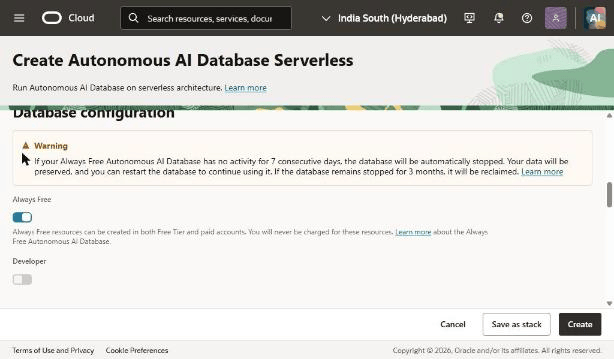
1. Create the Autonomous Database
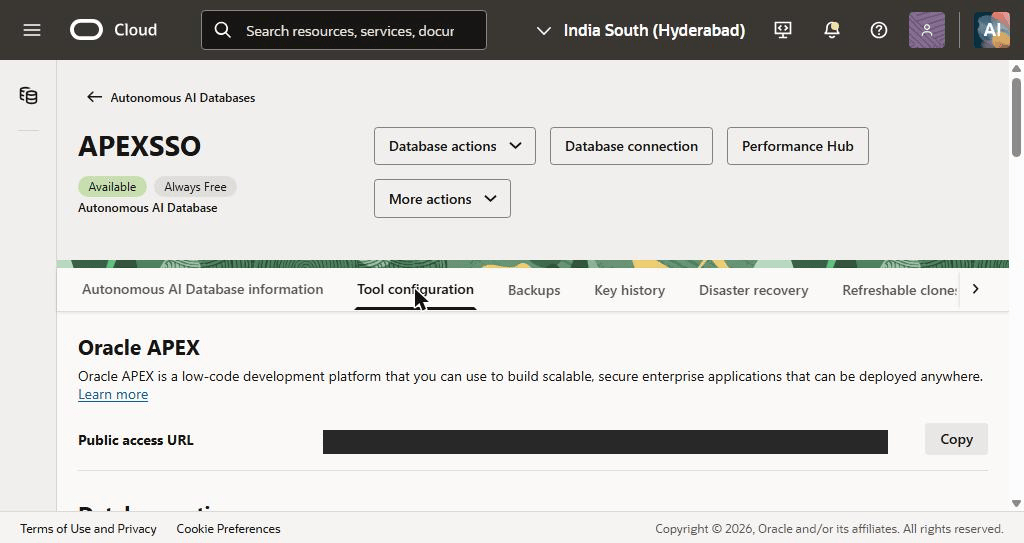
Create an Always Free Autonomous Database (workload type Transaction Processing or APEX, 19c). Once it is Available, note the APEX URL from the Tool configuration tab.
2. Create a workspace and a test application
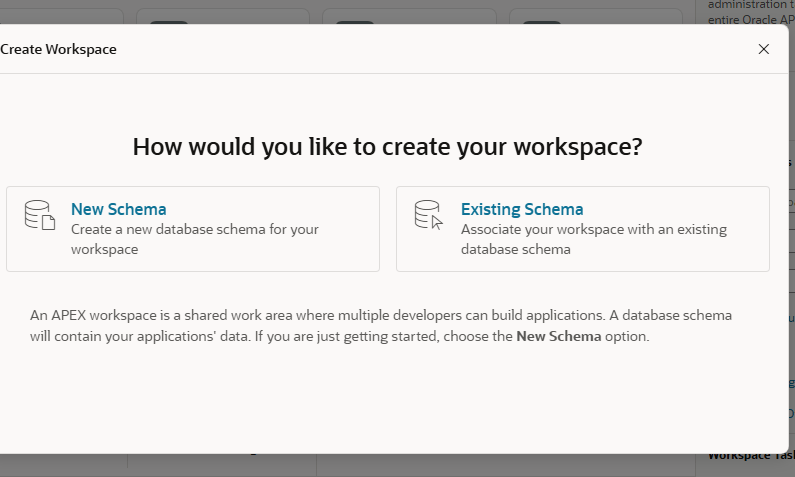
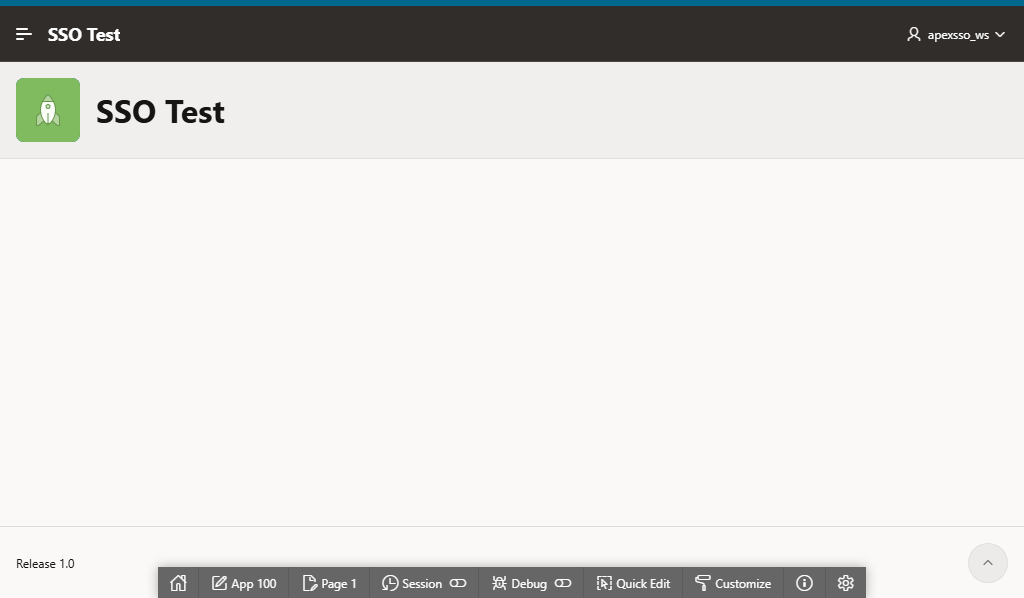
Log in to APEX Administration Services as ADMIN, create a workspace with a new schema, then create a basic application. Run it once with the default APEX accounts login so you have a working baseline.
3. Register a confidential application in the Identity Domain
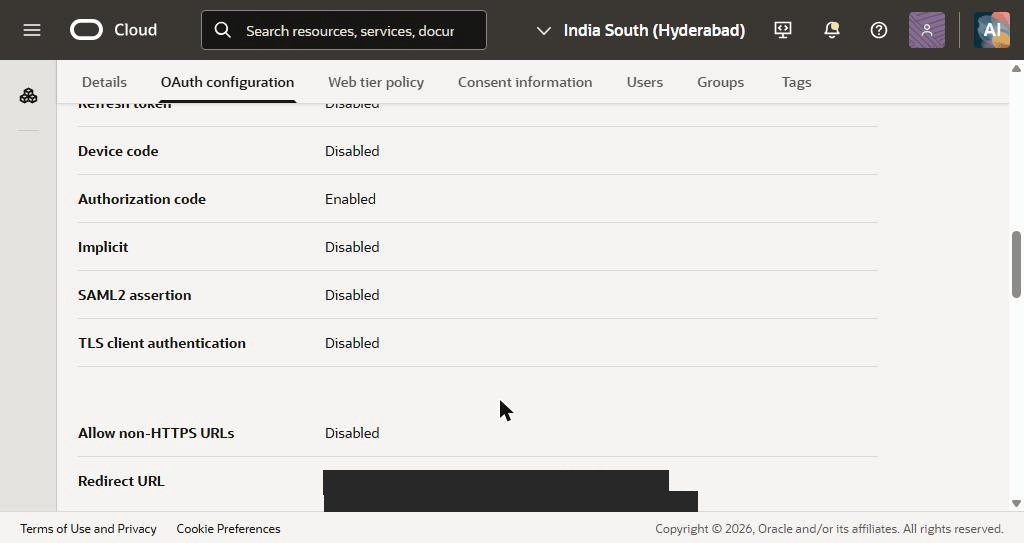
In the Identity Domain, add a Confidential Application. Configure it as a client with the Authorization Code grant. The redirect URL is the APEX callback:
https://<adb-host>.adb.<region>.oraclecloudapps.com/ords/apex_authentication.callback
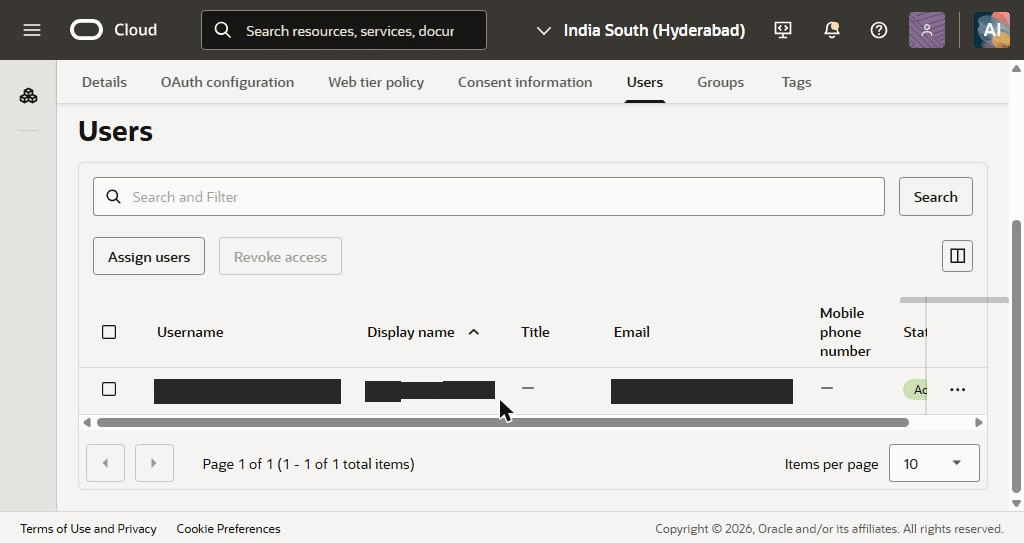
Also add a post-logout redirect URL (I used the application home URL). Activate the app, copy the client ID and secret, and assign the users or a group that may sign in.
4. Create the Web Credential in APEX
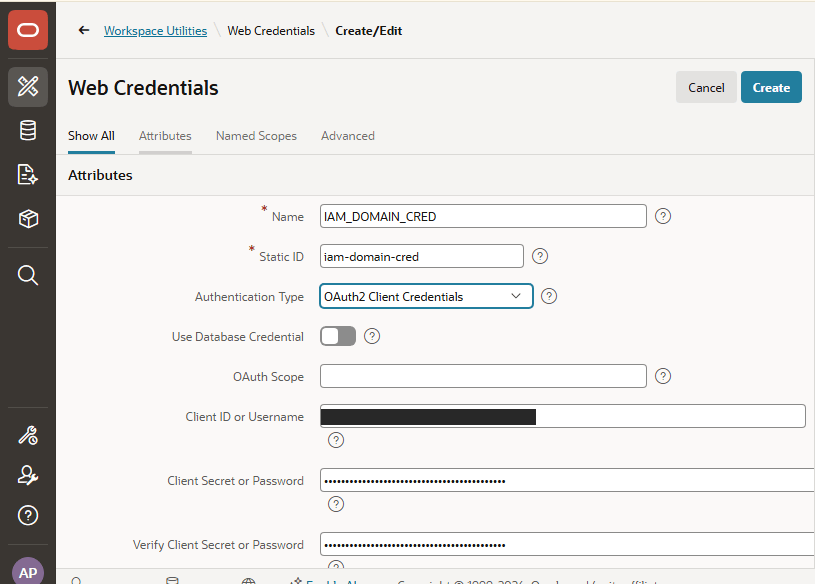
In APEX 26.1, Web Credentials sit under App Builder → Workspace Utilities → Web Credentials, not in the application’s Shared Components. Create one with Authentication Type OAuth2 Client Credentials and paste the client ID and secret. Despite the name, this is only how APEX stores the client ID and secret; the browser sign-in itself uses the Authorization Code flow configured in step 3.
5. Create the Social Sign-In authentication scheme
In the application, create a new authentication scheme from the gallery:
- Scheme Type: Social Sign-In
- Credential Store: the Web Credential from step 4
- Authentication Provider: OpenID Connect Provider
- Discovery URL:
https://idcs-<domain-id>.identity.oraclecloud.com/.well-known/openid-configuration - Scope:
profile,email - Username:
email
Then use Make Current Scheme.
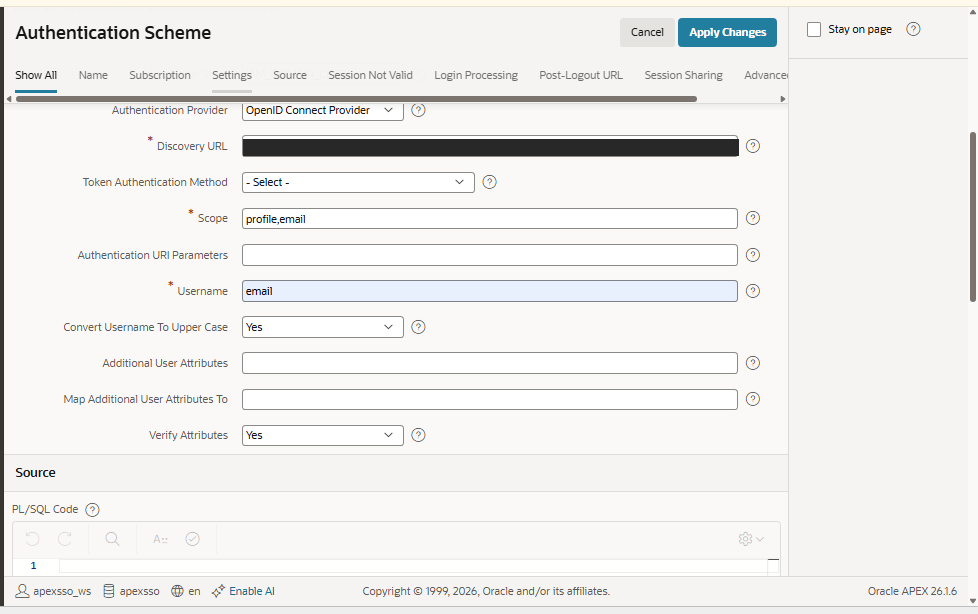
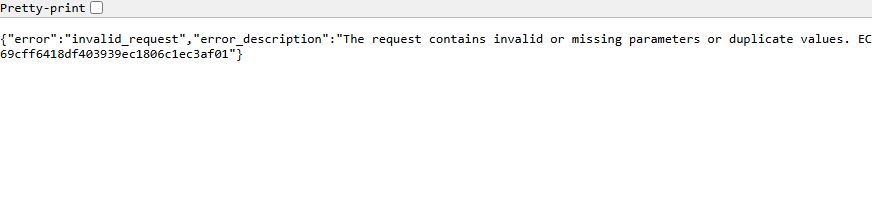
Watch the scope. APEX adds openid on its own. If you also put openid in the scope field, the Identity Domain rejects the request with invalid_request and a “duplicate values” message.
6. Fix sign-out
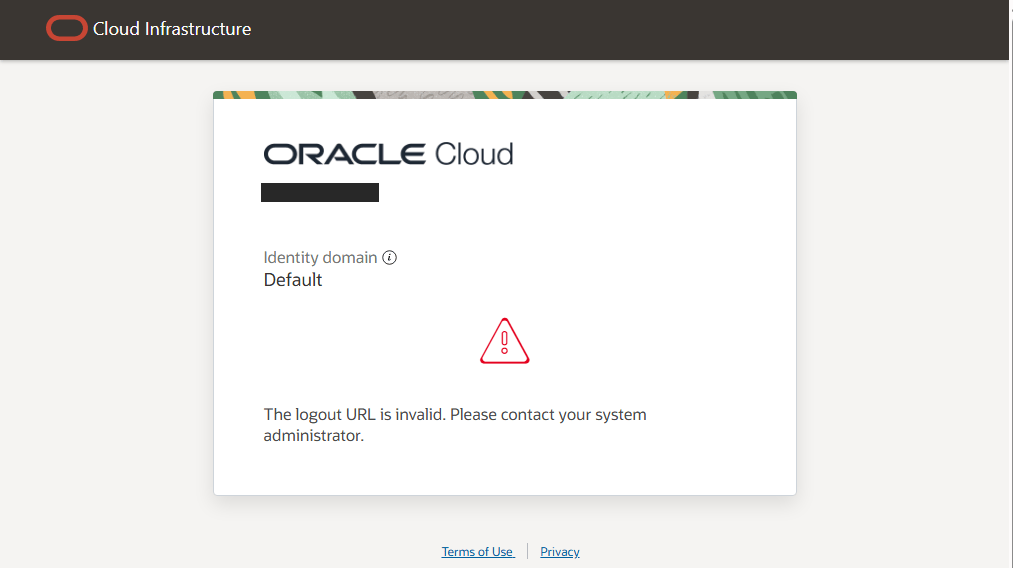
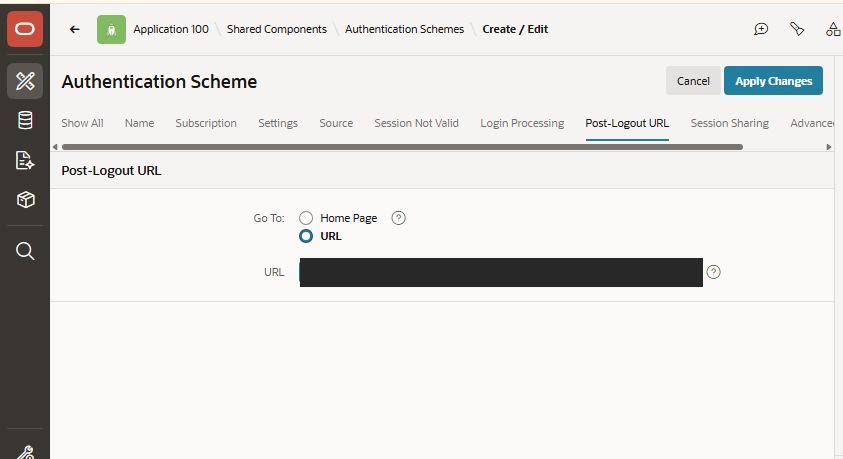
With the default logout settings, the Identity Domain returned “The logout URL is invalid”. The fix is to set the scheme’s Post-Logout URL to Go To URL and use exactly the post-logout URL registered in the confidential application.
7. Test
In a private browser window, open the application. You land on the Identity Domain sign-in page, and after login you are back in APEX as the user’s email address.
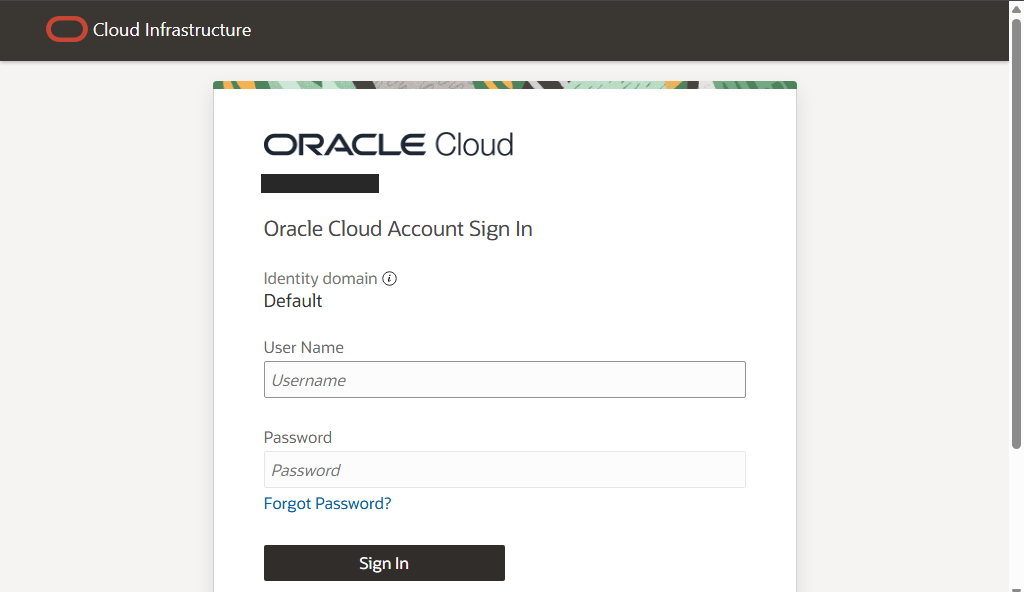
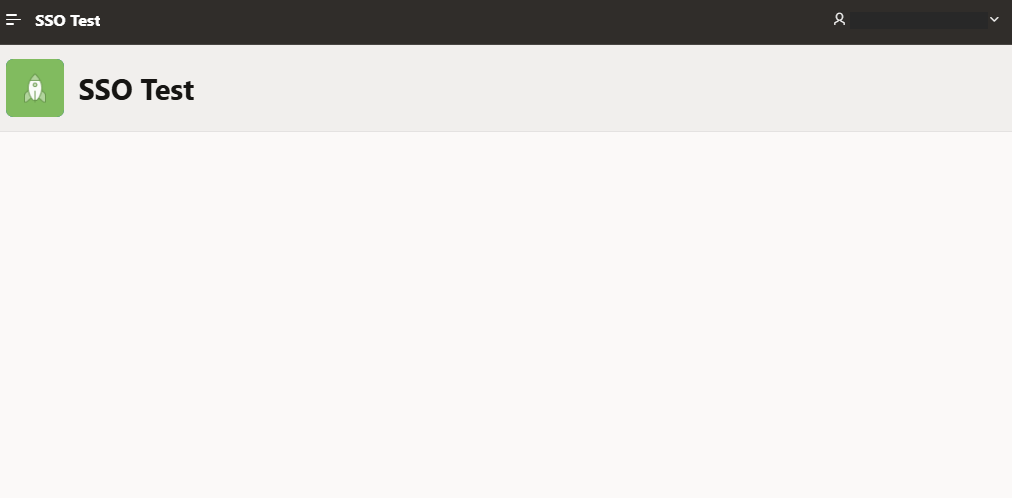
One side effect worth knowing: if you are logged in to the OCI Console with the same Identity Domain, signing out of APEX ends that console session too.
Phase 2: federate the Identity Domain to a SAML IdP
1. Prepare the IdP (Keycloak in the lab)
I cloned an Oracle Linux 8.10 base VM, installed Java 21 and Keycloak 26.8 under /opt, and ran it as a systemd service on HTTPS with a PKCS12 keystore. Then I created a realm and a test user whose email matches a user in the Identity Domain.
SELinux note: my first attempt ran Keycloak from a home directory and systemd failed with status=203/EXEC. With SELinux enforcing, files under a home directory carry the user_home_t context, which systemd will not execute. Moving the install to /opt and running restorecon fixed it.
restorecon -Rv /opt/keycloak-26.8.2
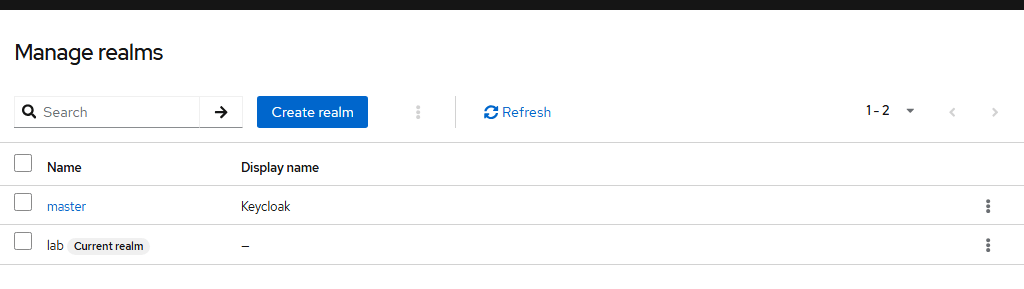
2. Add the SAML IdP in the Identity Domain
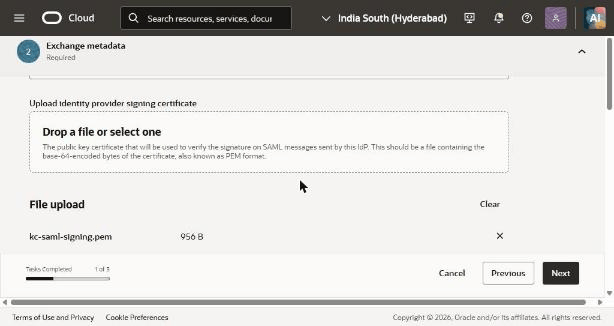
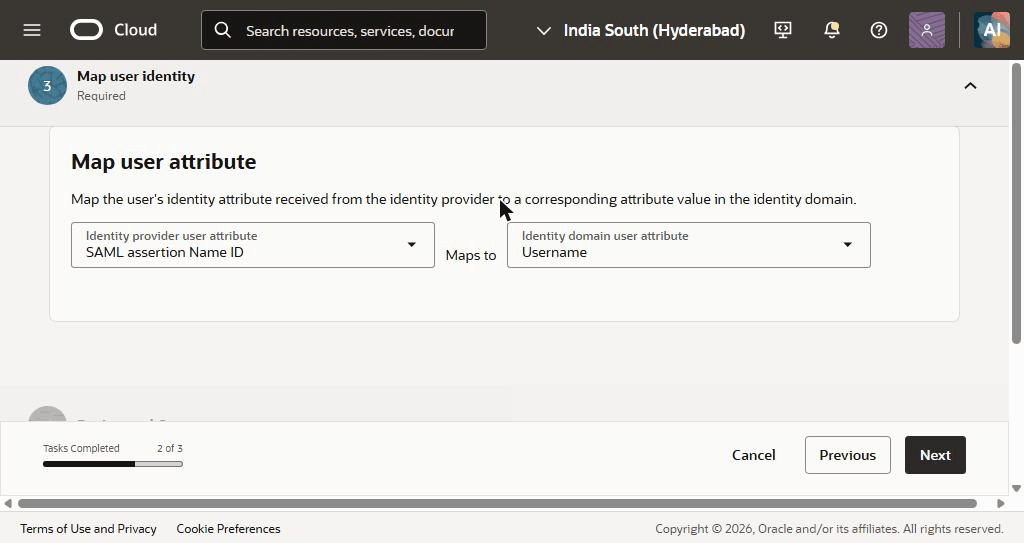
In the Identity Domain, go to Security → Identity providers → Add SAML IdP. I entered the IdP details manually: the issuer (entity ID), the SSO URL, and the IdP signing certificate exported from the realm. Map the identity as follows:
- Requested NameID format: Email address
- Assertion NameID maps to: the user’s primary email
Upload the certificate into the signing certificate field, not the encryption field. It is easy to drop it into the wrong box.
Activate the IdP once it is created.
3. Register the Identity Domain on the IdP side
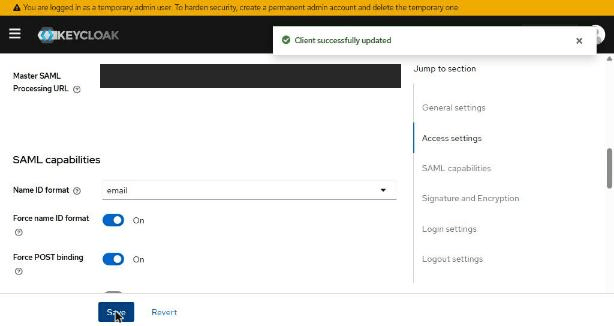
On the IdP, create a SAML client for the Identity Domain as the service provider. The metadata page did not load for me, so I used the standard values directly:
Entity ID / Client ID : https://idcs-<domain-id>.identity.oraclecloud.com:443/fedACS URL : https://idcs-<domain-id>.identity.oraclecloud.com/fed/v1/sp/sso
Set the NameID format to email so the assertion carries the user’s email address. In my lab I also turned off Client signature required on the Keycloak client. That is a lab shortcut, not a production recommendation: in production, follow your security policy on signed AuthnRequests. Also make sure the email used as the identity key is unique and verified; where emails can change, a stable identifier is the safer choice.
4. Route the APEX app to the IdP with an IdP policy
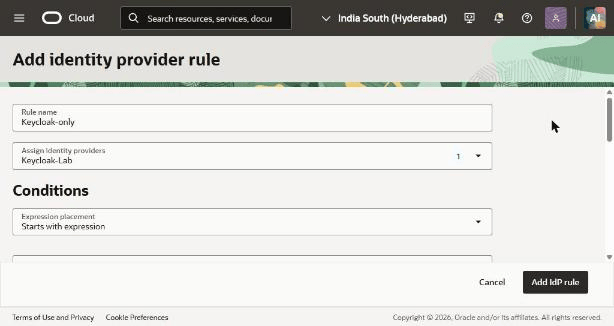
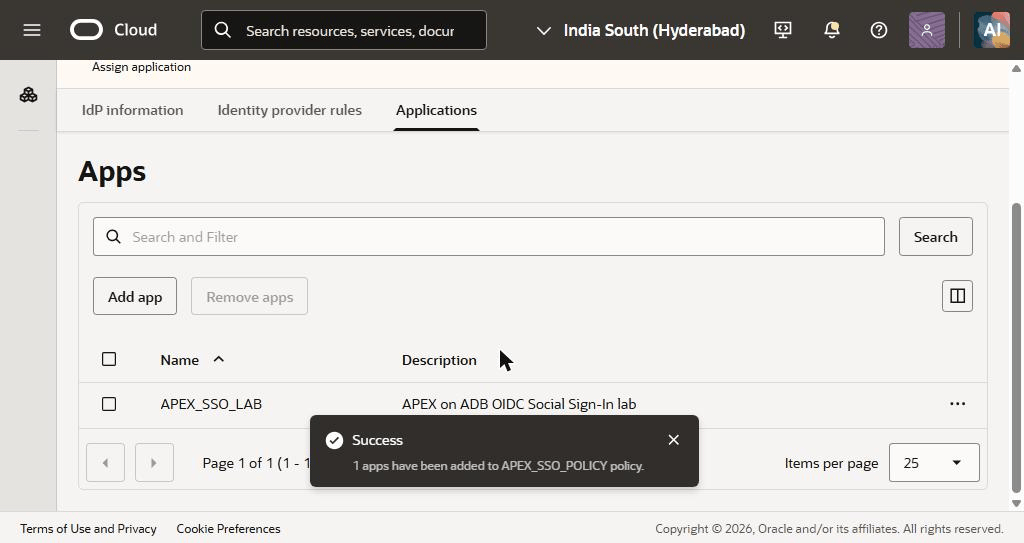
Under Security → IdP policies, create a policy with a rule that allows only the new SAML IdP, then assign the policy to the confidential application from Phase 1. Because the rule lists just one IdP, users go straight to the SAML IdP login page with no Identity Domain screen in between. That gives the “auto redirect to the IdP” behaviour that was asked for.
5. End-to-end test
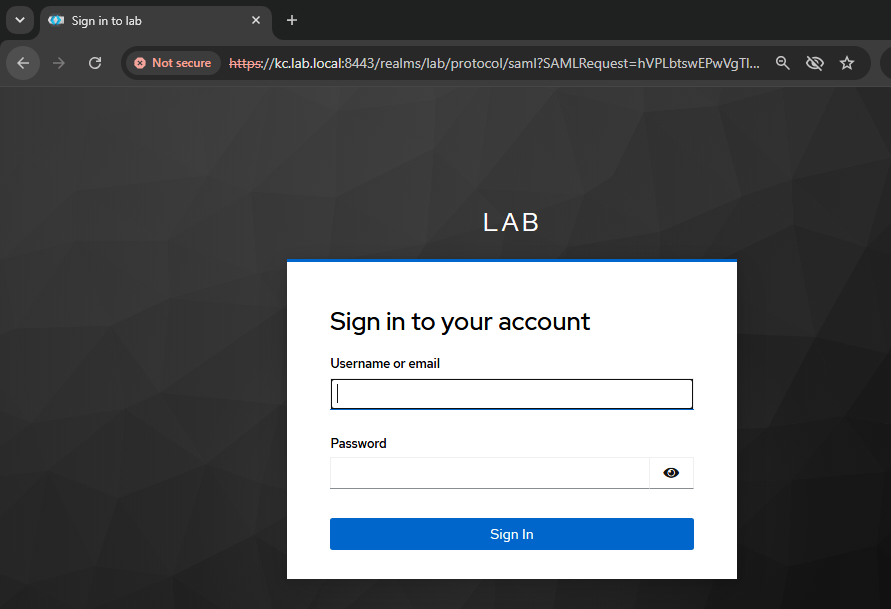
Test in a fresh private window. Reusing a window that already has an Identity Domain session gives misleading results. The flow I saw:
- Open the APEX application URL.
- The browser redirects through the Identity Domain to the IdP login page with a
SAMLRequest. - Sign in as the IdP test user.
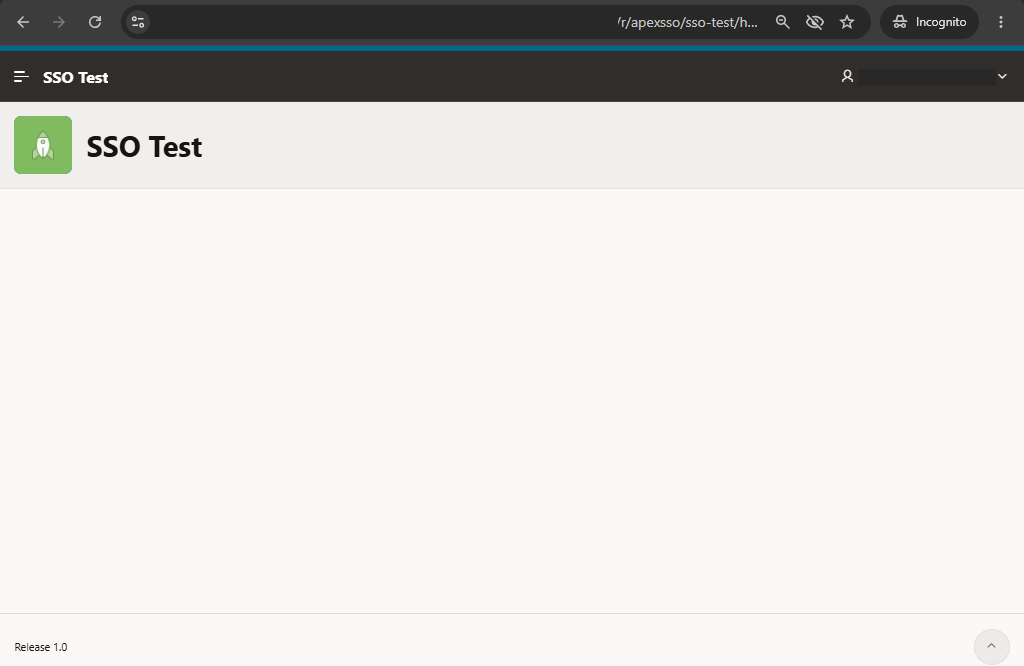
- You land in the APEX app, signed in as the user’s email.
Moving from Keycloak to OAM 12.2
I have not run this against OAM in the lab yet, so treat the list below as a proposed checklist, not a verified procedure. The APEX and Identity Domain application settings should stay the same as long as OAM sends an equivalent SAML assertion; confirm OAM’s metadata, signing certificate, NameID, attribute mapping and logout behaviour before calling the swap done.
- Enable Identity Federation in OAM and export the OAM IdP metadata.
- Create a SAML 2.0 service provider partner for the Identity Domain using the entity ID and ACS URL above.
- Set the NameID to email, mapped from the user store attribute that holds the email address.
- Add OAM as the SAML IdP in the Identity Domain, then point the IdP policy at it.
- Make sure the email in OAM matches an existing user in the Identity Domain, or plan for provisioning.
Troubleshooting quick reference
| Symptom | Cause and fix |
|---|---|
invalid_request, duplicate values | openid listed in the scope. Use profile,email. |
| “The logout URL is invalid” | Post-Logout URL must be Go To URL and match the registered URL. |
| Scheme changes have no effect | The scheme is not current. Use Make Current Scheme. |
| Web Credentials missing in Shared Components | In APEX 26.1 they are under Workspace Utilities. |
| Keycloak service fails with 203/EXEC | SELinux context on a home directory. Install under /opt and run restorecon. |
| Test logs straight in without the IdP | An old session. Retest in a fresh private window. |
Takeaways
- On Autonomous Database with Oracle-managed ORDS, use the Identity Domain as the SAML broker and keep APEX on OIDC.
- An IdP policy with a single IdP gives a clean redirect straight to the corporate login page.
- Email worked well as the common key across the IdP, the Identity Domain and APEX in this lab.
- The whole thing fits in the OCI Free Tier, so it is easy to rehearse before touching a customer environment.
What’s next in this series
This is Part 1 of a short APEX SSO series from my home lab:
- Part 1 (this post): APEX on Autonomous Database with SAML through OCI IAM.
- Part 2: the native APEX SAML Sign-In scheme on a customer-managed ORDS, and how it compares with this approach.
- Part 3: replacing Keycloak with OAM 12.2.1.4 as the identity provider.
References
- Oracle APEX Limitations on Autonomous AI Database (Oracle documentation: SAML Sign-In only with customer-managed ORDS)
- APEX Administration Guide: Editing SAML Sign In (the
security.externalSessionTrustedOriginsrequirement)
